Every business is slightly different, which is why a system that only does the standard thing is only ever half a system. Odoo ships with a broad set of apps - sales, invoicing, stock, purchasing, projects, website - and on top of that it lets you add modules: focused pieces of function that one business needed and someone wrote down properly. Installing a module is the moment your system stops being shipped defaults and starts being yours.
This is the long version of that operation: what a module actually is, where to find a good one, and the two routes into a live instance on our servers - Quick Git and Git. Read it once and the phrase "just install the module" stops being a mystery.
1. What an app or a module is - and where to find one
A module (the words "app" and "module" get used interchangeably, and nobody is being sloppy when they do) is a business capability that has been packaged so the system can pick it up. A stock reservation method, a localisation for your country's tax rules, a dashboard for one department - each of those is a module somewhere.
There are two places worth looking, and they are not equivalent:
- apps.odoo.com - the official app store. Largest catalogue, most commercial publishers, and a mixture of quality that ranges from excellent to abandoned.
- apps.odoo-community.org - the Odoo Community Association's own index. Smaller, curated, and built by the people who write Odoo for a living.
Search on what the business needs to do, not on what you think the feature is called. "Reserve stock for a customer order" finds better things than "stock module" does.
2. What you are actually downloading - quality, version, and a folder of files
A module is a folder of files. That is the whole secret. It holds a manifest that names it, Python and XML that describe what it does, and whatever assets it needs. Your instance reads that folder. There is no installer in the classic sense, no setup wizard that writes into the operating system - which is exactly why the two routes below are both, essentially, "get the folder in front of the server and tell the server to look again".
Two things decide whether a module is worth your time:
- Provider quality. The app store marks modules and providers with quality indicators, and the reviews on the card are worth reading before the description. The best of the lot are the OCA modules - they are made with ❤️ by the community association, peer-reviewed, and maintained against new Odoo versions by people who have no incentive to sell you anything.
- Version match. A module is written for one Odoo version. It needs to match the version of your instance. A module built for a different version is not "probably fine" - it is the single most common reason a module misbehaves after installation, and no amount of restarting fixes it.
What you get when you download. Downloading a module gives you a zip file, and inside that zip you will often find several sub-modules, each in its own separate folder. That detail matters later: the system looks for modules at a certain depth, and a zip that has been unpacked one folder too deep is the second most common reason a module never appears.
Both routes below are described in detail, because they solve the same problem for two different kinds of user.
3. Two ways to install: Git, or Quick Git
With Git you are the professional who wants the full workflow: your own repository per instance, your own keys, your own history, push and pull as you develop.
With Quick Git you just want the thing working: you upload your zip file and our servers handle all the git work behind it. Same destination, far less to learn.
Pick by who you are. If you are going to develop against the instance, use Git. If you bought a module, got a zip, and want it live this afternoon, Quick Git is the shorter road.
4. Upload the module: Quick Git
Everything happens inside your Odoo, in the console we run for you:
- Go to settings -> 4server -> GIT/MCP in your ODOO.
- Click on the button Import Module and select your ZIP file.
- Confirm the upload.
- After the upload is confirmed, restart the server - and then do the Update Module List dance (section 6). Both steps, in that order.
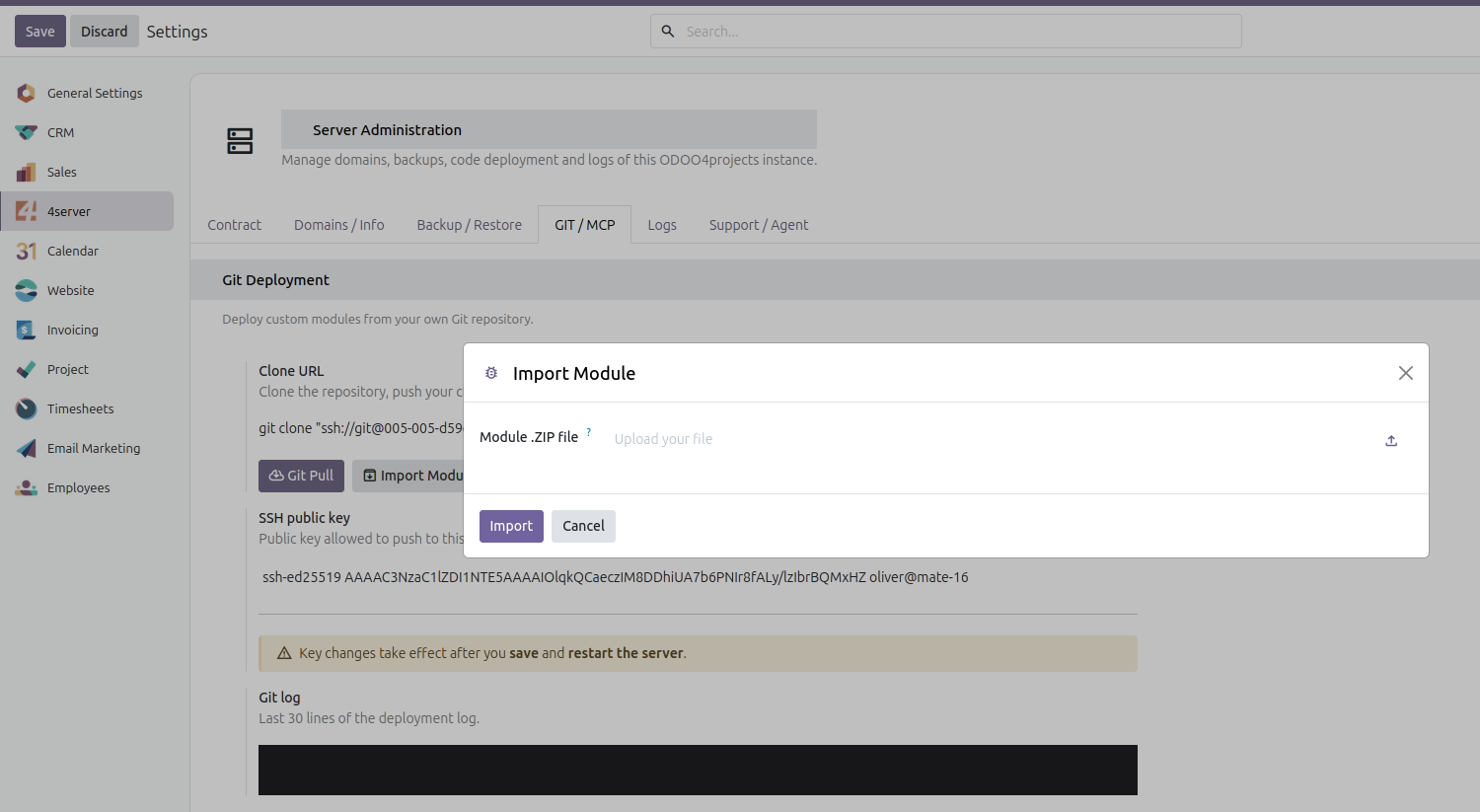
That is the whole procedure. The server unpacks the zip, puts the sub-modules where they belong, and commits them so the change is part of the instance's history rather than a loose file sitting on a disk somewhere.
5. Upload the module: Git
For professionals we use Git. Every ODOO instance on our server has its own git repository - one instance, one repo - so your customisations are versioned, reviewable, and portable rather than living in a folder nobody remembers creating.
Setting it up, in order:
- Create an SSH key. On your console, create one if you do not already have one:
ssh-keygen
- Copy the PUBLIC part of that key - the public part, never the private one - into your ODOO instance, in the field labelled SSH Public Key.
- Pro tip: you can add several keys, so you can develop with your team. One key per person, added the same way.
- Reboot the server to activate the key. The key does not count until the reboot has happened.
- Clone the repository to your PC. Use the clone URL and paste it into your command line, so the git repository gets cloned on your machine.
- Add your modules and push. You can install all your custom modules into the
custom/folder and push it. Done.
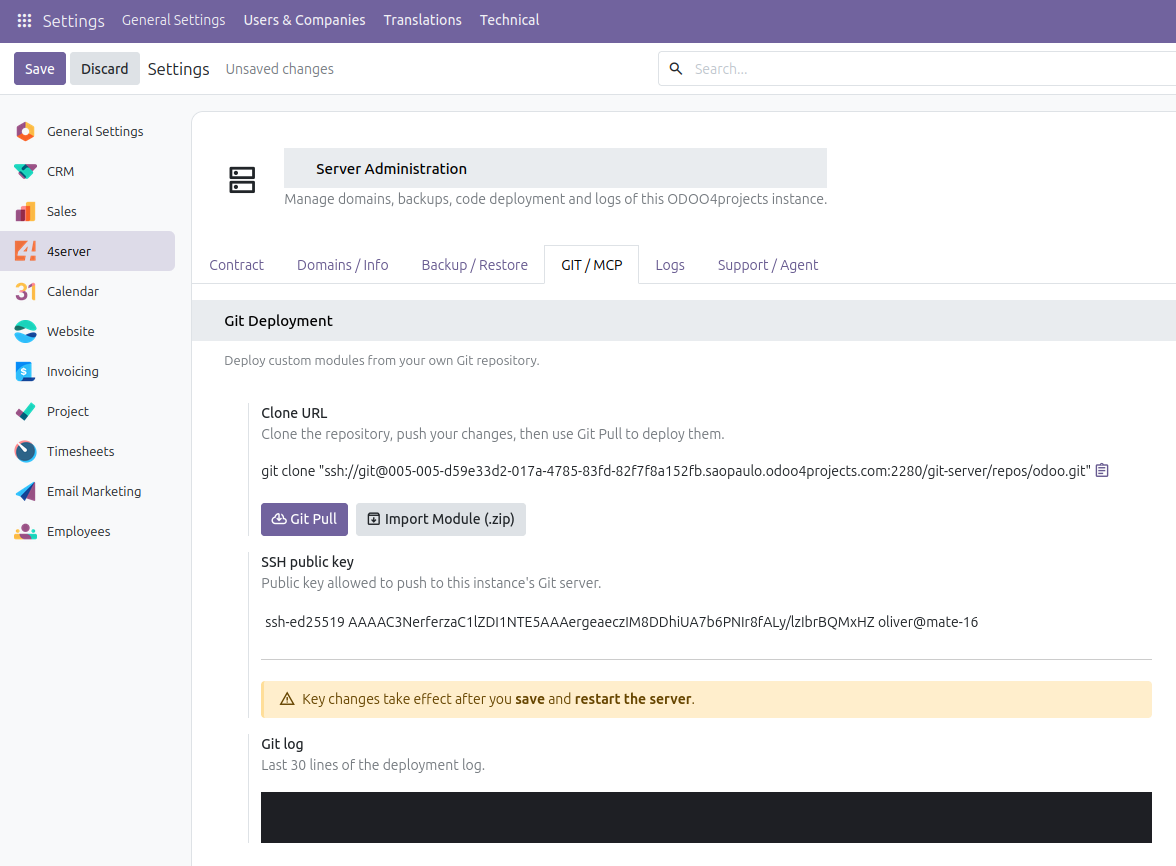
From then on, a module in the repository is a module on the server: push, restart, update the module list, and the new function is there.
6. Troubleshooting, and the Update Module List dance
When a new module is installed, you need to tell ODOO there is something new. It does not go looking by itself. This is the step people skip, and it is the reason a perfectly installed module "does not work".
- Go to Settings, scroll all the way down, and click on Activate Developer Mode.
- Go to Apps and click on the new menu item Update APP List.
- Your new modules should be visible - perhaps you need to delete the filter APPS by clicking on the X.
That last line is the trap. The Apps screen comes with a filter applied, so a module that is installed, matched to the right version, and sitting exactly where it should be can still be invisible - hidden by a filter, not by a problem. Remove the filter and look again before you conclude anything is wrong.
If a module is still not there after you have restarted the server and updated the app list: check the version match first, then check whether the zip unpacked into a folder inside a folder. Those two account for most cases, and both are fixed by getting the folder to the right depth - by uploading the zip again through Quick Git, or by pushing the correctly nested folder through Git.
7. What this means for the person who owns the business
You do not have to enjoy any of this. The point of running your system as a service is that the boring half - the repository, the keys, the restart, the version match - is somebody else's job. Add a capability when the business needs it, not when a project plan says so: a module goes in, the menu item appears, and your team uses it the same day.
If a console is not where you want to spend your afternoon, that is not a gap in your abilities. It is a job that should never have been yours in the first place.